All postsPublished 2026-08-26
How to Use Your iPhone as a Magic Trackpad for Mac
You can't pair an iPhone as a Bluetooth Magic Trackpad. To use it as a trackpad, install two apps on the same Wi‑Fi: MagicPad Server (free, top-right of the Mac screen) and MagicPad on iPhone. Type the 4-digit code from that Mac menu. You don't create a MagicPad account.
What you need
The phone and the Mac must be on the same Wi‑Fi. Glance at this list, then download.
| Item | Requirement |
|---|---|
| iPhone | iOS 17 or later |
| Mac | macOS 14 or later (Apple Silicon or Intel) |
| Network | Same Wi‑Fi. Turn VPN off on both devices. If iCloud Private Relay is on, turn that off too — it can hide the Mac from the phone |
| Permissions | Accessibility for MagicPad Server on Mac; Local Network for MagicPad on iPhone |
You need both apps. The iPhone app alone cannot move the Mac cursor.
How to set it up
Three steps: Mac, iPhone, then the code. On the Mac step you also turn on Accessibility. Skip it, and the cursor will not move.
01
Install MagicPad Server on the Mac
On the Mac, open magicpad.app/download. Pick the Apple silicon or Intel file, open it, and drag MagicPad Server into Applications.
Open MagicPad Server. It shows up in the menu bar at the top-right — not in the Dock. When Mac asks, turn on Accessibility for MagicPad Server. That permission is how the phone is allowed to move the cursor. If the cursor still does not move, click Refresh permission status in that same menu.
If macOS blocks the first launch, open System Settings → Privacy & Security and allow MagicPad Server, or right-click the app and choose Open.
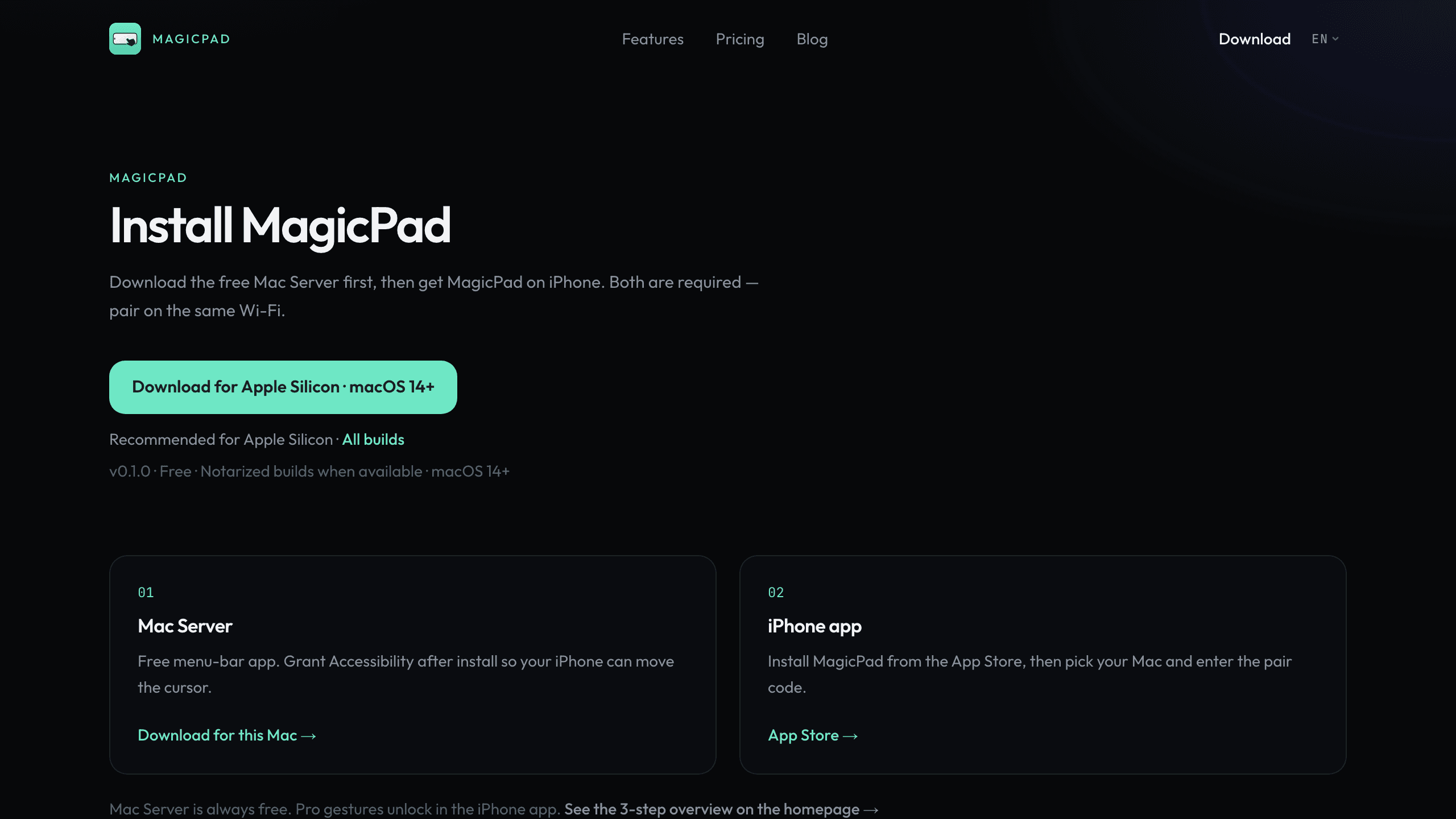
Download MagicPad Server on the Mac first. The iPhone app is a separate install from the App Store. 02
Install MagicPad on iPhone
Install MagicPad from the App Store. Allow Local Network when asked — that is how the phone finds your Mac on Wi‑Fi.
Open the app. On the Nearby Macs screen, your computer should appear if MagicPad Server is running and both devices are on the same network.
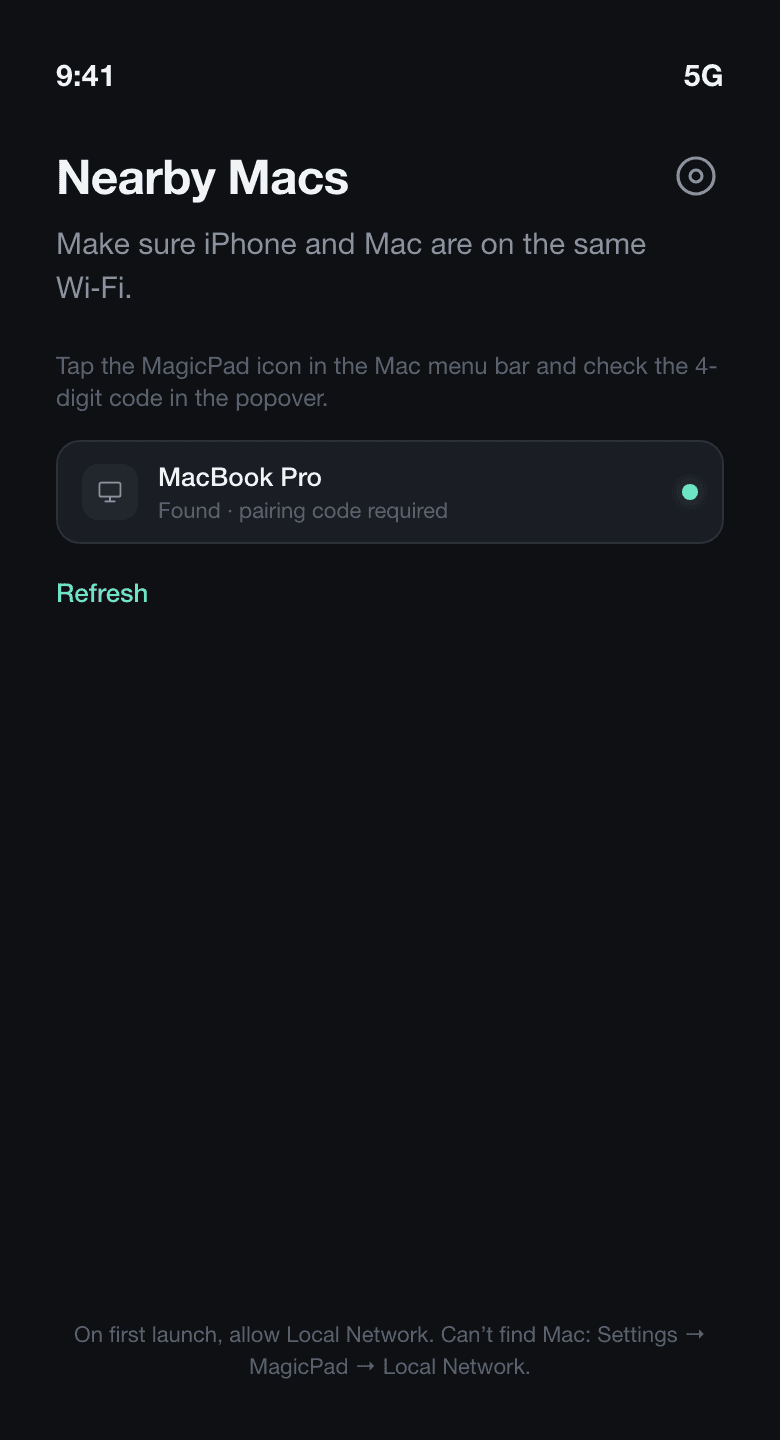
Same Wi‑Fi, MagicPad Server open, Local Network allowed — your Mac shows up in the list. 03
Pair with the 4-digit code
Tap the MagicPad icon in the Mac menu bar (the small phone-and-hand near Control Center). The menu shows a 4-digit pairing code. It is not in the Dock.
On iPhone, tap your Mac, then type that code. After it connects, the iPhone screen is the trackpad.
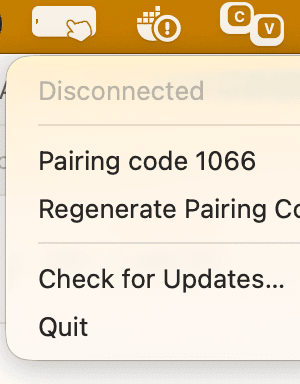
The pairing code is in the Mac menu bar. Look near Control Center for the phone-and-hand icon. 
Type the same 4 digits on iPhone. If the code expired, tap Regenerate Pairing Code in the Mac menu.
What you can do after pairing
Move, click, and scroll are free. Window-switching gestures are Pro. It will not click like Apple’s glass Magic Trackpad — you are using the iPhone screen you already have.

| Action | How | Free or Pro |
|---|---|---|
| Move the pointer | One finger | Free |
| Click | Tap | Free |
| Scroll | Two fingers | Free |
| Right-click | Two-finger tap | Free |
| Mission Control | Three-finger swipe up | Pro |
| App Exposé | Three-finger swipe down | Pro |
| Switch Spaces | Three-finger swipe left or right | Pro |
| Show Desktop | Four-finger spread | Pro |
| Applications | Four-finger pinch | Pro |
Turn the phone sideways. The pad is then closer in size to a Magic Trackpad. Pro is optional, bought in the iPhone app; see pricing. Move, click, and scroll stay free.
What this is not
A few Apple features and remote apps sound similar. They are not this.
- Not Sidecar
- Sidecar uses an iPad as a second display. iPhone does not do Sidecar, and a trackpad does not add another screen.
- Not Universal Control
- Universal Control lets the Mac’s keyboard and mouse control a nearby iPad or another Mac. Here you want the opposite: the phone controls this Mac.
- Not a remote desktop
- You still look at the Mac (or the TV it is plugged into). MagicPad does not stream the Mac screen over the internet, and it will not control a Mac on another network.
- Not waving the phone in the air
- Some apps turn the phone into a pointer you wave around. A trackpad is a surface you rest your fingers on: move, tap, scroll, then swipe.
If the iPhone cannot control the Mac
Usually it is one of these three. The support page has the same answers.
- iPhone cannot find the Mac
- Same Wi‑Fi, VPN off, MagicPad Server showing in the menu bar, and Local Network allowed for MagicPad on iPhone. Hotel Wi‑Fi, guest networks, and some home routers keep the phone and Mac from seeing each other.
- Paired, but the cursor does not move
- Turn on Accessibility for MagicPad Server in System Settings, then click Refresh permission status in the menu bar. Without that permission, the phone cannot move the cursor. MagicPad Server does not watch your screen.
- Mac will not open the app
- System Settings → Privacy & Security → allow MagicPad Server, or right-click the app the first time and choose Open.
Common questions
- Yes, if you also install a small free app on the Mac. An iPhone cannot pair as a Bluetooth Magic Trackpad by itself. MagicPad Server plus the iPhone app connect on the same Wi‑Fi with a 4-digit code.
- No internet account. Pairing stays on your Wi‑Fi. You never create a MagicPad login. You do need the same Wi‑Fi; turn VPN off while you pair and use it.
- The iPhone app and Mac Server are free to download. Move, click, two-finger scroll, and right-click stay free. Mission Control, Spaces, App Exposé, Show Desktop, and Applications are optional Pro in the iPhone app.
- Yes. Any Mac on macOS 14 or later with MagicPad Server installed. It is especially useful when the Mac is across the room or plugged into a TV.
- macOS asks for Accessibility whenever an app needs to move the cursor. The Server does not watch your screen. You can turn the permission off in System Settings; the cursor will stop.
You can start now.
Install the free Mac Server, then get MagicPad on iPhone. Pair on the same Wi‑Fi, then move, click, and scroll.